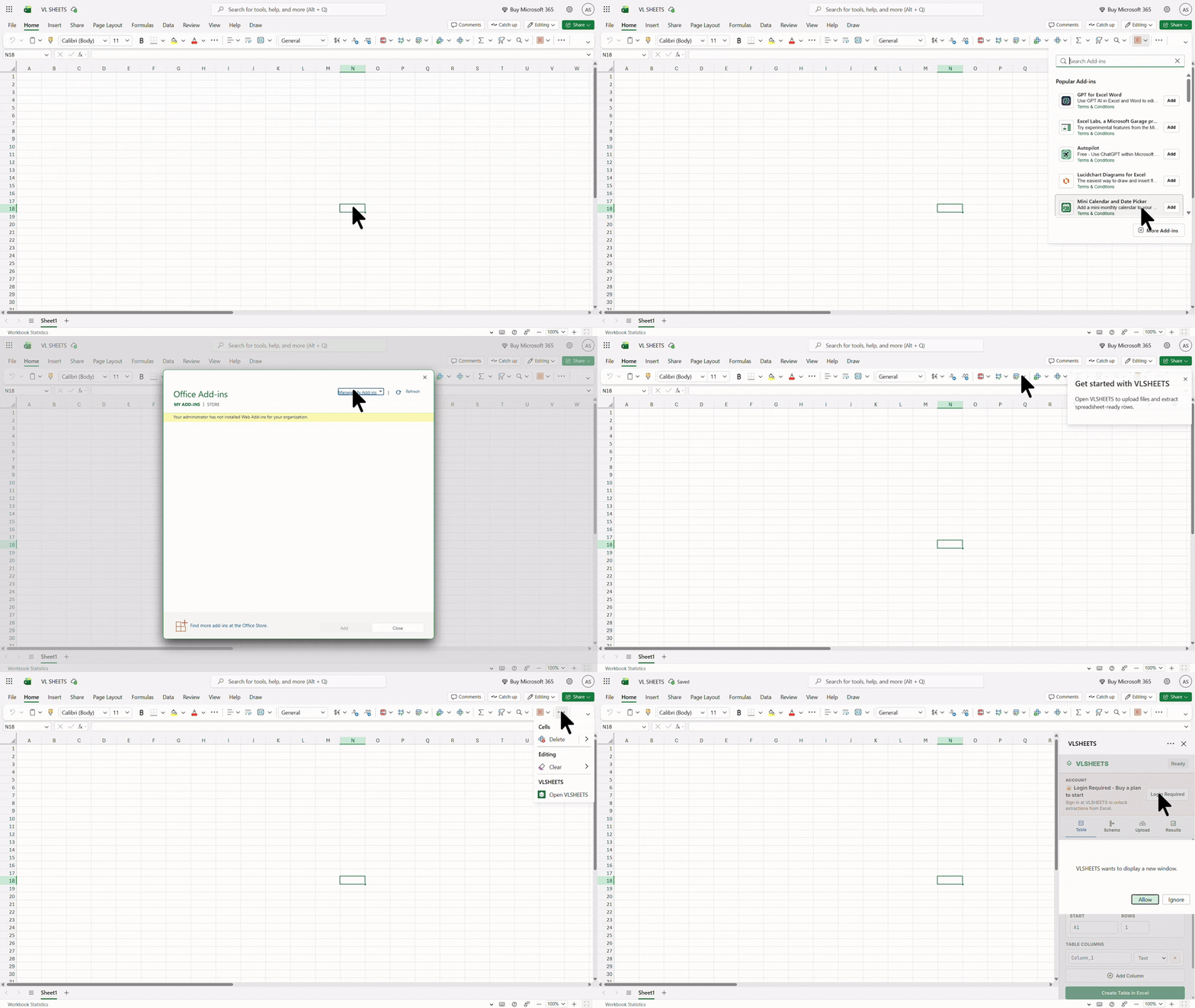
VLSHEETS installs in Excel on the web. Open excel.office.com, go to Home → Add-ins, choose Upload My Add-in, then upload the manifest file you download from your dashboard or the install guide at /welcome. After upload, click Open VLSHEETS on the Home ribbon and sign in with your VLSHEETS account.
Open Excel on the web at excel.office.com and create or open a workbook
Go to Home → Add-ins (or Insert → Add-ins), then choose Upload My Add-in
Download the VLSHEETS manifest from the install guide and upload the .xml file
Click Open VLSHEETS on the Home ribbon and sign in
See the full install guide on the welcome page after you sign in.
Does VLSHEETS work in desktop Excel?
Self-install is supported in Excel on the web today. Desktop Excel via the Microsoft Store is coming soon. If your company has Microsoft 365, your IT admin can deploy VLSHEETS for your organization using centralized deployment.
How do I sign in?
Click "Sign In" in the taskpane. A login window opens where you can sign in with Google or email and password. Once signed in, your session stays active across the website and Excel.
Why am I asked to log in again?
Sessions can expire after extended inactivity for security. Simply sign in again — your data and credits are unaffected.
Account & Billing
Is VLSHEETS pay as you go or are there plans?
VLSHEETS is pay as you go — every account starts with a one-time 500-unit trial. No subscriptions. See the comparison below.
Plan
Credits
Max file size
Files per run
PDF pages per run
New account gift
500 one-time units
10 MB
50
100
Top-up (₹100 min)
₹1 ≈ 9 units, never expires
10 MB
50
100
What is a "credit"?
1 credit (unit) = ₹0.10 of provider spend. Charges vary by extraction mode: AI OCR, Paddle only, and Docling only are 1 unit/page; Mistral Document AI is 5; Azure Content Understanding is 30. You pay only for the pages actually processed.
Do unused credits roll over?
Plan credits reset every 30 days and do not roll over. Credits purchased via add-on packs do roll over, up to a cap of 2× your monthly plan allowance.
How do I buy more credits?
Go to the Pricing page, select the credit pack add-on, and complete checkout. Purchased credits are added on top of your plan's monthly credits.
How do I upgrade or downgrade my plan?
Visit the Pricing page and select a new plan. Changes take effect after payment, and your credit balance is adjusted accordingly.
How do I cancel my subscription?
There is no self-serve cancel button yet. Email support@vl-sheet.online to cancel renewal. Your paid plan remains active until the end of the current billing period.
I was charged but my plan didn't update. What do I do?
This is usually a temporary sync delay. Wait a few minutes and refresh your dashboard. If it's still incorrect after 30 minutes, email support@vl-sheet.online with your payment reference ID.
What payment methods do you accept?
We use Razorpay, which supports major cards, UPI, net banking, and wallets.
Can I get a refund?
Refund requests are evaluated case-by-case. Contact support@vl-sheet.online with your order details.
Using the Add-in
What file types can I upload?
PDF, images (JPG/PNG), DOCX, XLSX, and CSV files are supported — ideal for GST invoices, bank statements, purchase bills, and GSTR PDFs.
Why did my extraction fail?
Common causes:
A file exceeds your plan's per-file size limit
Selected PDFs exceed your plan's PDF pages-per-run limit
File is corrupted or password-protected
Too many files uploaded at once for your plan's "files per run" limit
If the issue persists, try a smaller file or contact support@vl-sheet.online with details of the error.
What OCR modes are available and which should I use?
AI OCR (pdfplumber + Paddle) is the default — it reads the embedded text layer on born-digital PDFs and runs Paddle OCR on scanned pages. If the text layer is unreliable, use Paddle only or Docling only to force OCR on every page. All three use Gemma for field extraction and cost 1 unit/page.
Why is my extraction taking longer than usual?
Processing time depends on file size, complexity, and current load. Extractions run one at a time per account, so a busy queue can add delay.
Can I edit the extracted data before it's written to my sheet?
Yes — GST invoice rows, bank statement entries, and other extracted values appear in a preview before being written into your Excel register, so you can review and adjust as needed.
My credits were deducted but the extraction failed. What happens?
If an extraction fails or errors out before completion, credits are not deducted. If you believe credits were incorrectly deducted, contact support@vl-sheet.online with the approximate time of the extraction.
Account & Data
Is my data secure?
Yes. All data is transmitted over encrypted (HTTPS) connections, and access to your account data is restricted. See our Privacy Policy for full details.
Do you store my uploaded documents?
Uploaded files are processed in memory during extraction and are not persistently stored on VLSHEETS servers after the job completes. Job metadata (status, credits, pages processed) is retained in your account history.
How do I delete my account?
Go to Dashboard → Account settings, confirm your email, request a verification code, and complete deletion. You can also contact support if you need help.
Which third-party services does VLSHEETS use?
We use Google (for AI extraction and sign-in), Microsoft Azure (document analysis), Supabase (account/database), Razorpay (payments), Resend (transactional email), Vercel (hosting), and Hugging Face (processing infrastructure). Full details are in our Privacy Policy.
Still need help?
Email us at support@vl-sheet.online — Email us with as much detail as possible (screenshots, error messages, and the time the issue occurred) — this helps us resolve things faster.